A sound effect may have unused parts at the start or end. Sometimes you also want to take out only the part you need from a series of sounds. Using the actual waveforms of sounds in this library as examples, this page explains how to cut unneeded parts and join the edges smoothly with fades.
The start and end of the sounds in this library
On October 3, 2026, we examined the 1,510 sounds whose original WAV files could be measured. Of these, 70 have an almost silent section (below -60 dBFS) of more than 0.2 seconds at the start, and 72 have one at the end. In other words, about 95% (1,440 sounds) have 0.2 seconds or less of silence at the start. Most sounds can be placed as they are without the margin being noticeable, but some are easier to use if you tidy the start or end first.
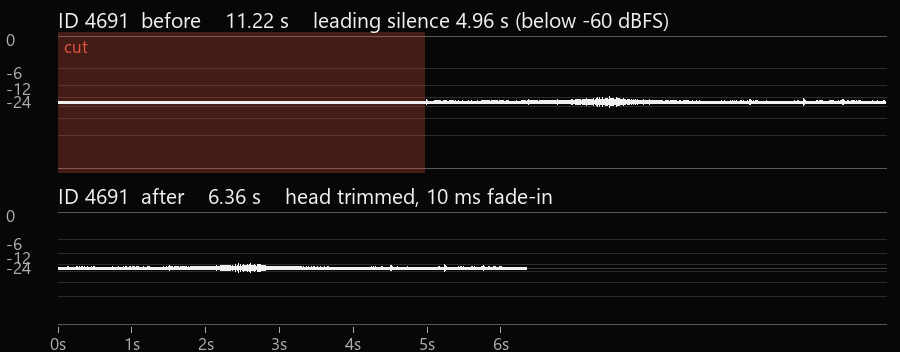
Example 1: cutting a long silence at the start
A Bicycle Passing By in Meguro (ID4691) is 11.22 seconds long, and the first 5.0 seconds (4.96 seconds) are below -60 dBFS. If you cut from a little before the sound begins (0.1 seconds before), the length becomes 6.36 seconds. We added a 10-millisecond fade-in so that the waveform does not start abruptly at the cut.
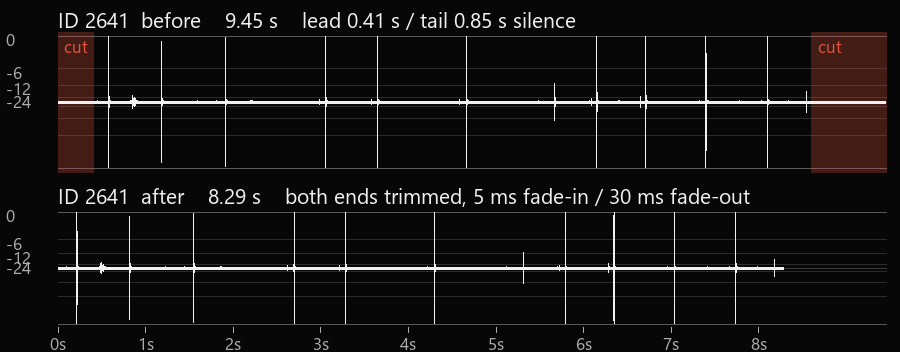
Example 2: cutting both ends and adding fades
Turbo Lighter Sound 02 (ID2641) is 9.45 seconds long, with silent sections of 0.41 seconds at the start and 0.85 seconds at the end. If you cut each leaving a 0.05-second margin, then add a 5-millisecond fade-in at the start and a 30-millisecond fade-out at the end, the length becomes 8.29 seconds.
Points to watch when cutting
- Don’t cut too much: cutting right before a sound starts, or cutting off the tail after it ends, sounds unnatural. It is safer to leave a little margin.
- Smooth the edges with fades: if you cut in the middle of a waveform, the cut can start abruptly and make a clicking noise. A short fade of a few milliseconds to a few tens of milliseconds makes it far less noticeable.
- Keep the original file: do your cuts in a separate file or in data inside your editing software, without overwriting the original, so that you can redo them.
- If you need a loop: when repeating the same sound, listen to check that the sound doesn’t drop out or overlap at the join.
Cutting in a DAW or video editor
Many DAWs and video editors can cut and fade. Names and operations differ by software and version, so please check the help for the software you use. Steinberg’s official help describes how to create and edit event fades in Cubase Pro 15 (Creating and Editing Fades • Cubase Pro Help). This is the manufacturer’s official information.
Try it with real sounds
These are the two sounds used above. Download them and try cutting and fading in your own software.
How we measured and processed
The length of silence was measured on the original WAV files of published sounds by counting the sections with amplitude below -60 dBFS from the start and from the end. The figures show the waveforms of the same WAV files cut and faded as described. The distributed sound files have not been changed.
Sources and date checked
Date checked: October 3, 2026
- Steinberg “Cubase Pro Help”, Creating and Editing Fades with the Range Selection Tool (steinberg.help)
- Length of silence and waveforms: measured from the sounds in this library
Related: Adjusting Sound Effect Volume / Using Sound Effects / How to Use