When you place a downloaded sound effect in a video or a game, you may feel that it is “quieter than the other sounds” or that it “distorts when I turn it up”. The cause is that recording levels differ from sound to sound, and so does the room available for raising the volume (headroom). This page explains how to adjust volume, using values and waveforms actually measured from sounds in this library.
First, the terms
- dBFS: a volume scale in which the maximum value of digital audio is 0. Levels are written as values below 0 dBFS, such as -6 dBFS. Going above 0 dBFS makes the sound distort (clip).
- Peak: the value at the loudest moment of the waveform. Whether a sound distorts is decided by its peak.
- Average level (RMS): the average loudness over a period of time. Even with the same peak, a higher average level tends to sound louder overall.
- Headroom: the margin from the peak up to 0 dBFS. If the peak is -10 dBFS, the headroom is 10 dB.
Levels of the sounds in this library (measured)
On October 3, 2026, we examined the 1,510 published sounds whose original WAV files could be measured. All 1,510 were 44.1 kHz, 16-bit, stereo.
| Peak range | Number of sounds |
|---|---|
| -1 dBFS or higher (almost 0 dBFS) | 61 |
| -1 to -6 dBFS | 350 |
| -6 to -12 dBFS | 934 |
| Below -12 dBFS | 165 |
The median peak was about -7.8 dBFS, the maximum was almost 0 dBFS and the minimum was about -28.7 dBFS. In other words, peaks differ by up to about 29 dB depending on the sound. When you combine several sounds, you need to match their volumes after placing them.
An example: comparing the waveforms of three sounds
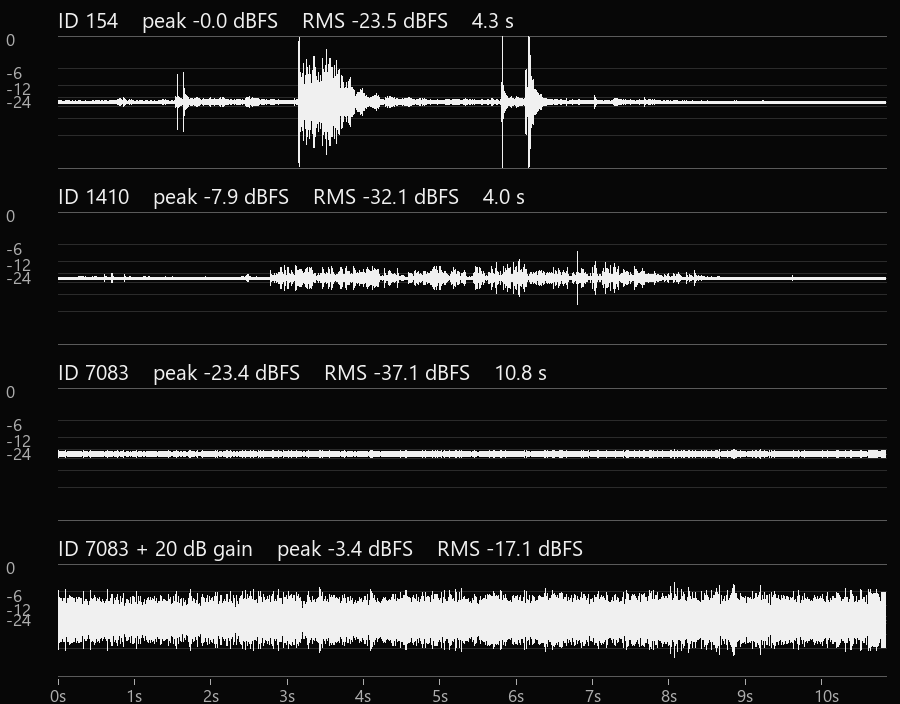
| Sound | Peak | Average level | Headroom |
|---|---|---|---|
| Door Opening and Closing Sound 01 (ID154) | about 0.0 dBFS | -23.5 dBFS | almost none |
| Sipping Through a Straw (ID1410) | -7.9 dBFS | -32.1 dBFS | about 7.9 dB |
| A Tree at Night and Insect Sounds (ID7083) | -23.4 dBFS | -37.1 dBFS | about 23.4 dB |
- ID154 peaks at almost 0 dBFS. You cannot make it louder by raising the gain (it would distort). To match it to other sounds, adjust it downward.
- ID1410 peaks at -7.9 dBFS and has about 7.9 dB of headroom. To bring the peak to -3 dBFS, a gain of about +4.9 dB is enough.
- ID7083 has a low peak of -23.4 dBFS and about 23.4 dB of headroom. To bring the peak to -3 dBFS, you need a gain of about +20.4 dB. The bottom waveform shows +20 dB applied, giving a peak of -3.4 dBFS and an average level of -17.1 dBFS. Note that the ambient sound in the recording (rustling and air) becomes louder by the same amount.
The gain you need can be calculated as “target peak – current peak”. For example, to reach a target of -3 dBFS, a sound with a peak of -23.4 dBFS needs -3 – (-23.4) = +20.4 dB.
General principles
- Instead of pushing the peak right up to 0 dBFS, leave a few dB of margin. It makes the sound less likely to distort when you layer it with other sounds or export it later.
- When several sounds play at once, the combined peak is larger than that of each individual sound. Check the peak after layering as well.
- The final volume is decided by the balance with the other sounds (voice and music) in your video or game. Use the numbers as a guide, and confirm by listening.
Adjusting in a DAW or video editor
Many DAWs and video editors have gain and volume controls. Screens and names differ by software and version, so please check the help for the software you use.
According to Steinberg’s official help, Cubase Pro 15 has “Normalize”, which raises or lowers audio that was recorded at an unsuitable level, and the reference can be the maximum peak or the loudness (Normalize • Cubase Pro Help). This is the manufacturer’s official information.
Levels while recording (for reference)
If the level is too low or too high when recording, the range you can adjust later becomes narrower. The manufacturers’ official information explains the following.
- On the Steinberg UR22C, the PEAK indicator lights up 3 dB below the level at which the input clips. The official manual explains that you should set INPUT GAIN so that PEAK blinks briefly at the loudest moments (UR22C Operation Manual).
- For the ZOOM iQ7, the manual explains that you adjust the MIC GAIN knob while watching the level LEDs, and lower the level when the red LED lights up (iQ7 Operation Manual (Japanese)).
Our own gear is introduced on Recording Gear and Setup.
Try it with real sounds
These are the three sounds used above. Download them and try changing the volume in your own software.
How we measured
The numbers were measured by reading the original WAV files of published sounds. The peak is the largest absolute value across channels, and the average level is the RMS of the whole file (both in dBFS, to one decimal place). The figure was made from the same WAV files; the distributed sound files have not been changed.
Sources and date checked
Date checked: October 3, 2026
- Steinberg “Cubase Pro Help”, Normalize (steinberg.help)
- Steinberg UR22C Operation Manual (PDF)
- ZOOM iQ7 Operation Manual (PDF, Japanese only)
- Numbers for the sounds: measured from the sounds in this library
Related: Cutting and Editing Sound Effects / Using Sound Effects / How to Use